
Emergency access
- Leitura
- 4 min
- Categoria
- Account and data recovery
Proton’s Emergency Access feature lets you choose up to five emergency contacts who can gain access to your account in the event of illness, death, or another emergency that stops you from accessing your account.
Emergency Access is available on all paid Proton plans. Both you and your contact must have a Proton Mail email address.
- How it works
- Add an emergency contact
- Remove an emergency contact
- Get Emergency Access to someone’s Proton Account
- Stop being someone’s emergency contact
- I got an email saying I was added as an emergency contact. What does this mean?
How it works
When you add an emergency contact in your account settings, you set a waiting period. In an emergency, your contact can request access to your account, and their request is automatically granted at the end of the waiting period.
The waiting period ensures that nobody can access your account without your permission. We notify you whenever a request is made, so you can deny the request if it’s not a real emergency.
When you add an emergency contact, we send them an email to let them know. They’ll be able to see your account under People who trust me in the recovery section of their account settings.
Add an emergency contact
- Sign in to mail.proton.me(nova janela) and open your account settings.
- Select Recovery from the sidebar.

- Scroll down to Emergency access and click Add emergency contact.

- Add the email address of your chosen emergency contact. Note: This must be a Proton Mail email address.
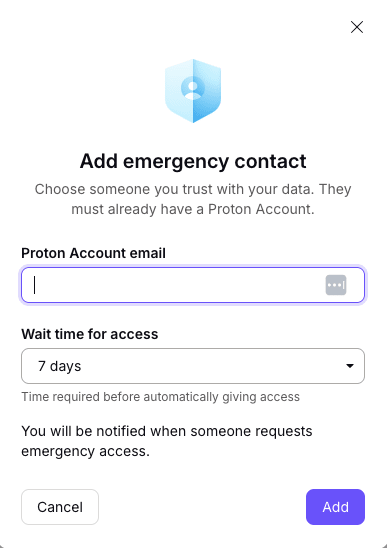
- Choose a Wait time for access from the dropdown. This is how long they must wait before access is granted automatically if you don’t approve the request manually.
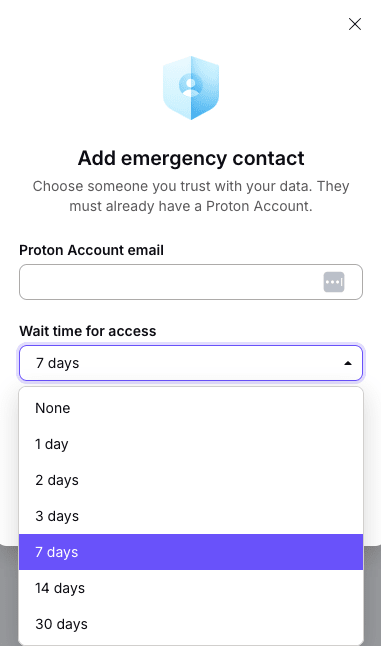
Wait time options: 30 days, 14 days, 7 days, 3 days, 2 days, 1 day, No wait time
- Enter your Proton password and click Continue to confirm.
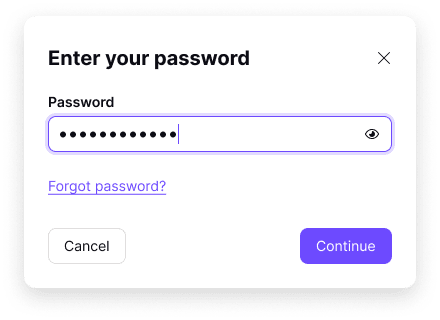
Your emergency contact has been added. They’ll get a notification email.
Remove an emergency contact
- Sign in to mail.proton.me(nova janela) and open your account settings.
- Select Recovery from the sidebar.
- Scroll to Advanced recovery options and select Emergency access.
- Find the contact you want to remove and click Remove.
- This will immediately remove them as an emergency contact. If you’re sure you want to continue, click Remove again.
- Enter your password to confirm.
Request Emergency Access to someone’s Proton Account
You can only request access if the account owner added you as an emergency contact. If they did, you’ll have received an email notification at the time.
Request Emergency Access
- Sign in to mail.proton.me(nova janela) and open your account settings.
- Select Recovery from the sidebar.
- Scroll to Advanced recovery options and select Emergency access.
- Find the person whose account you want to access (under People who trust me). Click Request access.
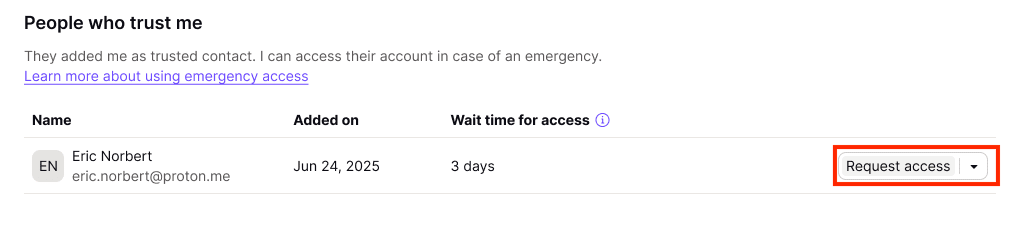
- Read the confirmation carefully. If you’re sure you need access, click Continue.

You’ll get access after the waiting period the account owner selected, or earlier if they approve your request manually.
Sign in to your contact’s account
- Once your access is approved, go back to your Recovery settings and go to Emergency access > People who trust me.
- Click Access account next to the contact. You’ll be asked to enter your own account password.

- Click Switch account to access their account.

You now have access to your contact’s account.
To switch between your account and theirs, go to your avatar and select your contact’s account from the menu.
Remove yourself from someone’s emergency contacts
- Sign in to mail.proton.me(nova janela) and open your account settings.
- Select Recovery from the sidebar.
- Scroll to Advanced recovery options and select Emergency access.
- Find the contact and click Stop being trusted contact.

I got an email saying I was added as an emergency contact. What does this mean?
If a Proton user adds you as an emergency contact, you don’t have to do anything.
It just means that they’ve nominated you to access their account in case of illness, death, or an emergency that stops them from getting into their account.
Being someone’s emergency contact doesn’t automatically make them your emergency contact. They won’t be able to access your account in an emergency, unless you decide to add them to your own emergency contact list. Learn more about Emergency Access
You should only be an emergency contact for someone if:
- They know and trust you.
- They (or their friends/family/network) can get in touch with you in an emergency, even if they don’t have access to Proton.
If you don’t want to be someone’s emergency contact, you can remove yourself from their contact list.